Guides
Signature pad for lightweight approvals and mockups
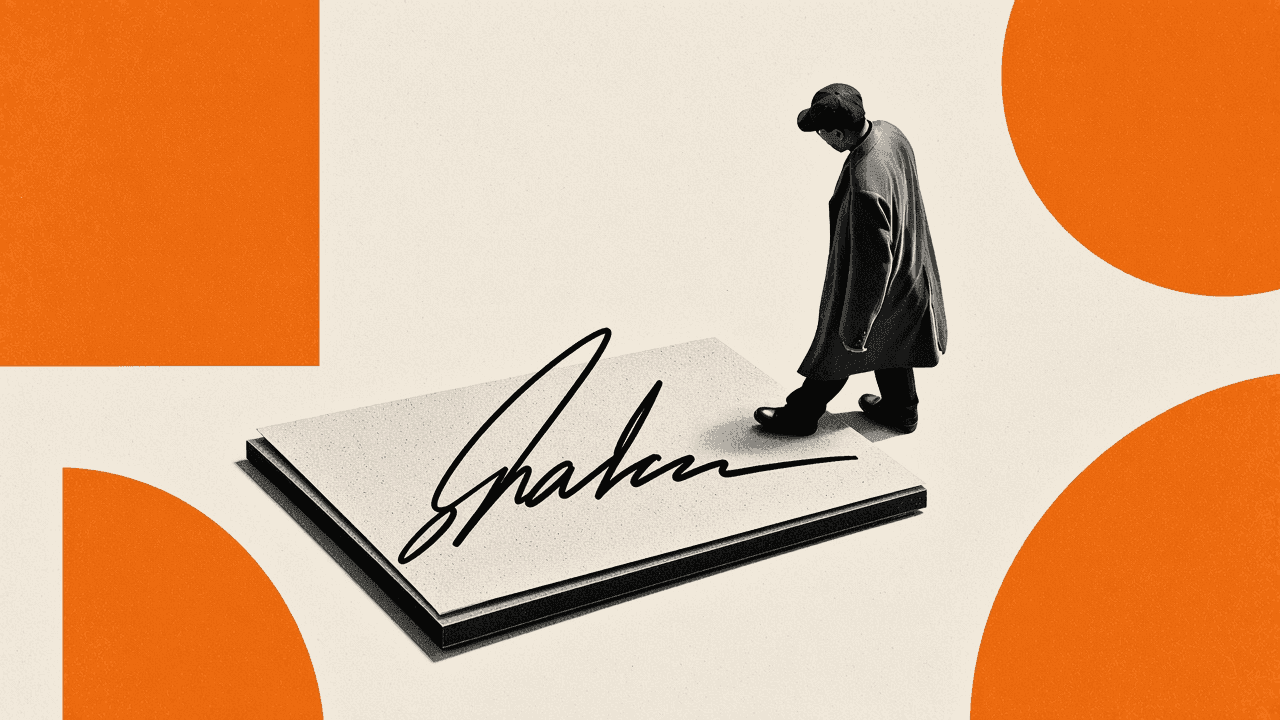
You need a signature-shaped image for a slide, a mock contract screenshot, or an informal internal draft. An online signature pad lets you draw with a mouse or finger and download PNG or SVG without installing software. Toolsy’s signature pad runs in the browser with no upload. It is a drawing tool for pictures. It is not DocuSign, Adobe Sign, or any legal electronic signature service with identity proof and an audit trail. Use a proper signing platform when the law or a deal requires one.
When a lightweight signature image is enough
Design reviews often need a “signed” looking footer on a sample PDF. Training decks need a scribble that shows where a wet signature would go. QA teams need a PNG to verify that a preview renderer places the image correctly. In those cases you want pixels, not a certificate.
Internal notes that already live in a trusted chat can use a signature image as a visual nod, the way people initials a whiteboard photo. That habit does not create a court-ready record. It only communicates “I looked at this” inside a team that already trusts the channel.
Stop when money, employment, medical consent, or real estate depends on the signature. Those workflows need a qualified e-sign product, identity checks, and retention rules your counsel accepts.
Signature pad versus legal e-sign
Legal e-sign platforms bind a person to a document with authentication, timestamps, and tamper-evident logs. A pad download is a free-floating image anyone could paste. Treating the PNG as proof of agreement is a process failure, not a feature.
What Toolsy’s pad does
You sketch on a canvas, clear if needed, and download PNG for everyday use or SVG for some editors. The drawing never uploads to Toolsy for processing. The file becomes whatever you do with it next: drop into Figma, paste into a slide, or insert into a mock PDF.
What it does not do
It does not verify identity. It does not lock the surrounding PDF. It does not email a certificate of completion. It does not meet ESIGN or UETA “intent to sign” workflows by itself. Competitors in the e-sign market sell that stack; this page does not.
How to prepare a clean signature image
Use a steady pointer or a finger on a phone. Sign larger than you think, then scale down in the destination app so strokes stay smooth. Prefer a blank cream or white export background unless your mock needs transparency; PNG handles most slide tools.
PNG versus SVG
Pick PNG when you need a simple raster for email footers, slide decks, and most CMS uploads. Pick SVG when a vector editor expects paths and you will resize aggressively. Test the SVG in the target tool once; some office suites rasterize or reject SVG signatures.
If the mock sits on a dark slide, draw with a thick stroke and check contrast. Tiny gray scribbles vanish on projectors the same way tiny slide text does.
Walkthrough: draw and download on Toolsy
Open signature pad. Draw, undo or clear until the mark looks like your usual scribble, then download PNG or SVG. Insert the file into the mock document. Keep a clear label such as “SAMPLE” on demo contracts so nobody mistakes the packet for an executed agreement.
For multi-page mock packets, combine pages with Merge PDF only when your policy allows that upload, then place the signature image on the preview page in your editor. For wording changes on real contracts, compare drafts with Text diff for contract revisions before anyone signs in a real e-sign tool.
Check the result
Zoom to 100% and confirm the stroke is not clipped. Re-export if the pad captured a palm smear. Store demo signatures in a “mocks only” folder, not in your legal vault of executed agreements.
Related jobs around approvals and demos
Pair signature images with fake data for staging when the mock form needs names above the line. Debug approval email links with URL parser for UTM debugging. When the real packet is sensitive, follow Merge PDF online security checklist and Is it safe to upload documents online? before any server merge.
Where signature images fit in a demo packet
Place the PNG on the last page of a SAMPLE PDF, in a slide footer, or beside a form mock that already uses fake names from random data. Keep the surrounding copy explicit: “Illustration only.” Designers can drop SVG into a vector mock when the artboard needs clean scaling.
Do not attach the same file to a real vendor contract “just for now.” That shortcut creates a trail that looks like execution in email search. If stakeholders need a real signature path, schedule the e-sign send and keep the pad file out of that thread.
For packet assembly that involves uploads, re-read Is it safe to upload documents online? before you merge or convert anything sensitive next to the mock.
Limits, honesty, and when to switch to e-sign
The pad is free and browser-side. Output is an image only. Do not forge someone else’s signature. Do not tell a counterparty that a pasted PNG equals platform e-sign. Do not rely on this tool for regulated consent.
Switch to DocuSign, Adobe Sign, or your org’s approved vendor when you need authentication, sequencing of signers, and a durable audit trail. Keep Toolsy for mocks, slides, and informal visuals.
Frequently asked questions
What is an online signature pad on Toolsy?
It is a browser canvas where you draw a signature mark and download PNG or SVG. The goal is a reusable image for mockups and informal drafts. It is not a full contract workflow and it does not add legal certificates to your PDF.
Is draw signature online the same as legal e-sign?
No. Legal e-sign services authenticate signers, lock documents, and keep audit trails. This pad only produces an image file. Use a proper signing product when a deal or regulation requires electronic execution.
Is the Toolsy signature pad free?
Yes. It runs in your browser with no upload and no account. There is no Toolsy daily OCR or PDF quota on the drawing step because the canvas stays local until you download the file yourself.
Which file types can I download?
PNG for a normal raster image, and SVG when you want a vector-style file for compatible editors. Try PNG first for slides and email. Open SVG in your target app once before you rely on it in a client demo.
Is my drawing uploaded to Toolsy?
No. The canvas stays in the browser for the drawing step. Risk begins when you insert the file into shared drives, email, or public mockups. Treat demo signatures as disposable assets.
Can I use a signature PNG for payroll or real estate documents?
Not as your only signing method. Those documents need an approved e-sign or wet-ink process with identity and retention controls. A pad image can decorate a training example, not execute the real agreement.
How do I keep mock signed PDFs from confusing people?
Mark every page “SAMPLE” or “DEMO.” Store mocks outside the folder of executed agreements. Tell reviewers in the meeting chat that no legal signing happened. Delete outdated mock packets after the demo week.
Can I recreate someone else’s signature for “testing”?
Do not forge another person’s mark. Use your own scribble or a clearly fake flourish labeled as a placeholder. Forgery for “QA” still creates real legal and trust problems.
How does this relate to merging PDFs online?
Merging is a separate server job with upload and quota rules. The signature pad only makes an image. If you merge sensitive packets, read Merge PDF online security checklist and confirm the merge is allowed before you upload.
When should I stop using a signature pad?
Stop when a counterparty, regulator, or your counsel asks for certified e-sign, when money changes hands on the document, or when you need non-repudiation. Move those jobs to an approved signing platform and keep the pad for visuals only.
For staging personas above the signature line, continue with Generate fake data for staging.
Draw a signature image
Sketch on a pad in your browser, download PNG or SVG. For mockups and informal visuals only, not legal e-sign.