Guides
Printable Wi‑Fi QR code for your guest network
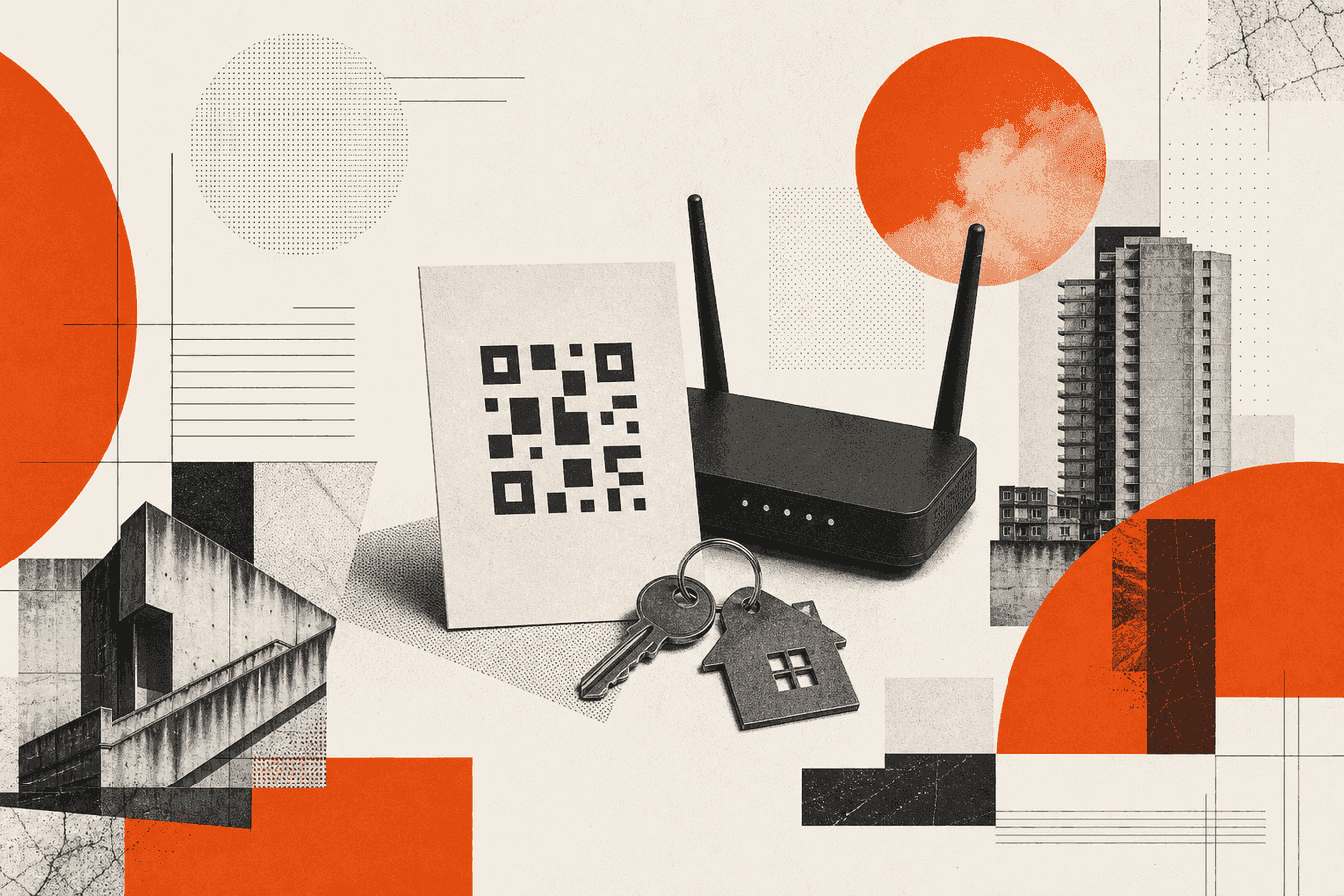
Guests still ask for the Wi‑Fi password. A printable wifi qr code for the guest network answers that without dictating a long string. You encode the guest SSID, the guest password, and the security type into a code phones can scan. Print the sheet, tape it by the door or on the counter, and leave the main-network credentials off the card. Use WPA or WPA2 on the guest SSID, pick a print size people can scan from a meter or so, and treat the sheet like a password because it is one. Toolsy’s Wi‑Fi QR tool builds that code in the browser. The password stays on your device. You download PNG or SVG and print.
Why guests still struggle with Wi‑Fi passwords
People type “wifi qr code” and “qr code for wifi” when they host, rent a short-stay, or run a small café. The job is simple: get a phone onto the network without spelling G7!mX… aloud.
Spoken passwords fail for boring reasons. Case and symbols get lost. Guests type on a keyboard they do not know. You end up unlocking a phone you would rather not handle.
A printed code for wifi removes the typing step. The camera reads the SSID and password, then offers a join prompt. You still need the right network name, the right security type, and a sheet large enough to scan in the light you have.
Home routers often print a sticker with a factory SSID. That sticker sits on the back of the box or under the device. Guests cannot see it from the sofa. A guest-facing print solves placement. You choose what hangs in the hallway.
Businesses face the same friction at higher volume. Every new visitor repeats the same ask. A laminated wifi qr code sign near the entrance cuts the loop. Front-desk staff stop dictating characters.
Guest network versus your main network
Before you generate anything, decide which SSID the code will open. That choice matters more than the print layout.
Guests only need internet access for email, maps, and streaming. They do not need your printer, NAS, or work VPN. A guest SSID is the clean way to draw that line on consumer and small-business routers.
If you skip the split and encode the main network, every scan equals a full password handoff. The paper then becomes a long-lived key sitting in photos and group chats. Plan the SSID first, then generate the mark.
Keep the main SSID off the guest sheet
Your main network holds laptops, printers, NAS boxes, and cameras. Anyone who scans a code for that SSID joins with the same rights as a typed password. Do not put that payload on a public card.
Create or enable a guest SSID on the router when the firmware allows it. Give it its own password. Point the QR at that guest name only. When someone leaves with a phone photo of the sheet, they still land on the isolated guest path.
If your router lacks a guest SSID, treat the printed code as limited-trust access. Rotate the password when you rotate staff or when the sheet has been photographed too often. A QR is convenient. It is not a vault.
Café, rental, and office patterns
Cafés and coworking desks benefit from a guest SSID with client isolation. The print lives at the counter, not inside the staff-only cupboard with the admin login.
Short-term rentals can leave one sheet in the entry binder and another by the TV. Use the rental’s guest network. Change the password between long stays if the listing turns over often.
Offices should avoid encoding the corporate SSID on lobby posters. IT usually already runs a visitor WLAN. Encode that name. Keep the production VLAN off paper that strangers photograph.
What a Wi‑Fi QR code actually stores
A Wi‑Fi QR is not a website link. It is a small text payload phones understand as network credentials.
Typical fields include the SSID, the password, the security type (WPA, WEP, or open), and an optional hidden-network flag. Toolsy’s generator builds the standard WIFI:… string in your browser from those fields. Nothing in that flow needs a server copy of your password.
When the camera reads the code, the phone shows a join prompt for that SSID. Success depends on matching the router’s real settings, not on how sharp the PNG looked on your laptop screen.
SSID and password tips that avoid failed scans
Copy the SSID exactly as the router shows it. Extra spaces, wrong case, and lookalike characters break the join even when the QR “scans.” Prefer a short guest SSID you can read on the print as a caption under the code.
Use a password long enough for WPA2, without characters you will mistype when you first create the code. The guest never types it. You type it once into the generator. A wrong first entry produces a perfect-looking code that fails for everyone.
If the network is hidden, tick the hidden flag in the tool so the payload matches how the phone must join. Hidden networks still need the correct SSID string inside the code.
WPA, WEP, and open networks
Choose WPA / WPA2 for almost every guest sheet. That matches modern home and small-business gear. WEP is legacy. Open (no password) is for intentionally public SSIDs only.
Mismatch security and the phone may scan the code yet refuse to connect. If guests report a join prompt that fails, re-open the generator, confirm WPA, rebuild, and reprint. Do not assume the print size is the only fault.
Open networks need no password field. Still label the sheet so people know they are joining an unencrypted guest path. That honesty belongs on the paper, not only in your head.
How to make a printable guest Wi‑Fi QR
Search phrases like “how to make wifi qr code” map to a short workflow. You already know the guest SSID and password.
Open Toolsy’s Wi‑Fi QR code generator. Enter the guest network name. Enter the guest password. Set security to WPA / WPA2 unless you know you need something else. Mark hidden only when the SSID is hidden.
Preview the code on screen. Download PNG for a quick home print, or SVG if you will place the mark in a design file or scale it without blur. The tool note is direct: guests scan with the camera; the password never leaves your device.
Print a test page on plain paper. Scan with your own phone before you laminate or order stickers. Confirm the join lands on the guest SSID, not the main one.
If you need a URL QR for a menu or landing page instead of Wi‑Fi credentials, use the separate QR code generator. Keep Wi‑Fi payloads on the Wi‑Fi tool so you do not paste passwords into a generic text field by mistake.
Print size and where to hang the sheet
People also search “wifi qr code sign” and “print wifi qr code.” Size and lighting decide whether the camera locks.
A perfect payload still fails if the mark is tiny, stretched, or drowned in glare. Guests scan in hallways and at counters, not in a quiet studio. Design for that mess.
Print one test sheet, walk to the actual hang spot, and scan from the distance a visitor will stand. Adjust size before you order stickers or laminate a stack.
Size that phones can read
For a counter card scanned from about arm’s length, aim for a code at least 3-4 cm (roughly 1.25-1.5 in) on the shortest side. Lobby posters viewed from farther away need larger marks. When in doubt, print bigger rather than cramming the code into a corner of a busy flyer.
Leave a quiet margin of white space around the modules. Do not stretch the PNG into a non-square shape. Distortion breaks scanning even when the file looked sharp on a monitor.
Matte paper beats glossy in bright cafés. Glare from overhead lights can wipe the center of the code in the camera view. If you laminate, use a matte pouch or hang the sheet where light does not mirror into the lens.
Placement that guests notice
Put the sheet where people already pause: entry table, reception desk, rental welcome book, meeting-room door. Avoid the underside of the router. That is where the factory sticker lives, not where guests look.
Add a short caption under the code: network nickname, “Guest Wi‑Fi,” and nothing that reveals the main SSID. You can write the guest password in small type for older phones that struggle with QR. Know that anyone who photographs the sheet then has both the code and the plaintext.
Replace faded prints. Sun-bleached ink and crumpled tape reduce contrast. A fresh page costs less than another round of password dictation.
SSID and password safety when you share a QR
A wifi password qr code is the password in another shape. Anyone who scans joins that network. Share it with the same care you would use for the passphrase itself.
Do not post the guest sheet on a public Instagram story if the guest SSID still reaches printers or cameras. Isolation on the router is the real control. The paper only distributes access you already decided to offer.
If the code must leave the building as a file, prefer the browser-made download over photographing the laminated card. Photos pick up glare and can carry location metadata. When you do photograph a sheet for a private chat, strip location first. See Remove EXIF GPS before sharing photos.
Uploading credentials to a random “free generator” that processes on a server is a different risk profile. Toolsy’s Wi‑Fi tool is frontend: the password stays on your device. For a wider checklist on uploads and retention when a tool does take a file, read Is it safe to upload documents online?.
Rotate the guest password when staff change, when a rental listing resets, or when you find the sheet posted somewhere you did not put it. Rebuild the QR after every password change. Old prints become stale keys.
Related jobs next to a guest Wi‑Fi print
A guest sheet often sits beside other codes. A café menu link, a support email QR, or a simple URL to the house guide all belong on the QR code generator, not inside the Wi‑Fi payload.
Keep each code’s job clear on the page. One mark for guest Wi‑Fi. Another for the PDF menu or booking link. Mixed labels confuse people and lead to failed joins when someone scans the wrong square.
Dynamic redirect codes with scan counts live on Pro /dynamic-qr. A classic Wi‑Fi credential code is static. You change the password on the router, then reprint. You do not “edit the destination” of a Wi‑Fi payload the way you edit a marketing URL.
If you later brand a URL code with a logo, watch contrast and quiet zones. That is a different article problem from guest Wi‑Fi credentials. For this sheet, favor a plain mark and a short caption over decoration that softens the modules.
Limits and when a printed code is the wrong fix
A free wifi qr code will not fix a dead guest SSID, a full DHCP pool, or a captive portal that still needs a browser login after join. Fix the network first, then print.
Some older phones need a Wi‑Fi settings scan path instead of the main camera. Test with the devices your guests actually use. If half your visitors run phones that ignore Wi‑Fi QR payloads, keep a short plaintext password on the same card as a fallback.
Do not encode the ISP admin password or the router login. Those stay offline. The QR only carries the WLAN join string.
If you need analytics on how often people scan a marketing poster, that is a different product class. Guest Wi‑Fi prints optimize for silence at the door, not dashboards.
When the sheet must live in a shared drive as a photo, apply the EXIF habit above. When a vendor asks you to upload the password into their cloud “sign builder,” prefer generating locally and placing the PNG yourself.
For more guest Wi‑Fi prints, start at Wi‑Fi QR. For URL or text codes beside it, use the QR code generator. Privacy context for uploads and photo shares: Is it safe to upload documents online? and Remove EXIF GPS before sharing photos.
Frequently asked questions
How do I make a wifi qr code for guests?
Enable a guest SSID on your router with its own password. Open Wi‑Fi QR, enter that SSID and password, set WPA / WPA2, and download PNG or SVG. Print a test page and scan it yourself before you hang the final sheet. Use the guest network only so the main credentials stay off the card.
Is a wifi password qr code safe to leave on the counter?
It is as safe as leaving the password in plain sight, because the code contains the join secret. Limit risk with a guest SSID, client isolation when your router supports it, and a password you can rotate. Take the sheet down when you no longer want that access available. Treat photos of the sheet like shared passwords.
Does Toolsy upload my Wi‑Fi password?
No. The Wi‑Fi QR tool runs in the browser and draws the code on your device. Your password is not sent to Toolsy to generate the mark. That differs from document converters that must upload a file to process it. Read the product note on the tool page and the Privacy Policy for how other tools handle uploads.
What print size works for a wifi qr code sign?
For arm’s-length scans, keep the code at least about 3-4 cm across and give it a quiet white margin. Larger posters need larger codes so cameras can lock from farther away. Avoid glossy glare and non-square stretching. Reprint when ink fades or tape wrinkles the surface.
Will a wifi qr code work on iPhone?
Most recent iPhones can scan a Wi‑Fi QR with the Camera app and offer a join prompt when the payload is valid. Failures usually come from a wrong SSID, wrong security type, or a print that is too small or too shiny. Test with your own iPhone after you print. Search interest in “wifi qr code iphone” is high, but the fix is still correct credentials plus a readable mark.
Should I use WPA or leave the guest network open?
Use WPA / WPA2 for guest networks that still need a password. Open networks skip the password field and expose traffic to anyone nearby. WEP is outdated. Match the security setting in the generator to the router setting or phones will scan and still fail to join.
Can I put a logo on the guest Wi‑Fi QR?
A heavy logo over the modules can kill scan reliability. Prefer a clean code with a text caption beside it. If you brand a marketing URL QR instead, use the QR code generator and keep contrast high. Guest Wi‑Fi prints succeed when the camera sees clear modules, not when the sheet wins a design contest.
What is the difference between a router sticker and a printable guest QR?
Router stickers often show the factory main SSID and sit out of sight. A printable guest QR uses the guest SSID you choose and hangs where visitors stand. Searches for “wifi router qr code” often mean the factory mark. For hosts and cafés, the guest sheet is the product you want.
How do I share a wifi qr code without printing?
Download the PNG or SVG and send it in a private message to people you trust. Avoid public social posts for networks that reach private devices. If you send a photo of a printed sheet, strip location metadata first using the habit in Remove EXIF GPS before sharing photos. Rebuild and resend after any password change.
Is there a free wifi qr code tool without an account?
Yes. Toolsy’s Wi‑Fi QR generator is free and does not require signup to create a static guest code. You enter the fields, download, and print. Dynamic QR with editable destinations and scan counts is a separate Pro product. Keep static guest Wi‑Fi on the free Wi‑Fi tool. For the full small-business QR map (menus, vCards, scan failures), see QR codes for small business: complete guide.
Make a guest Wi‑Fi QR
Enter the guest SSID and password in your browser. Download PNG or SVG. The password stays on your device.