Guides
Google Business Profile photo specs
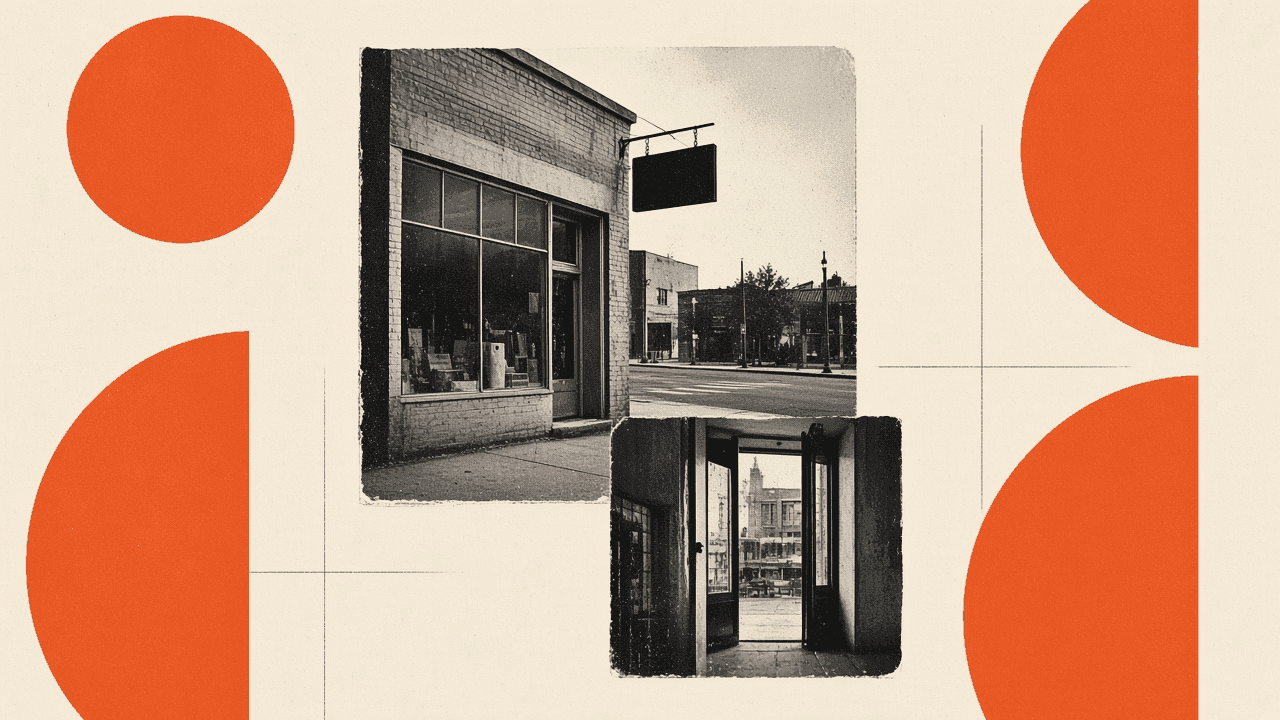
Google Business Profile photos fail when the logo is a wide banner, the cover is a tiny phone dump, or every interior shot is a dark HEIC from the hallway. Local businesses need practical google business photo size targets for three different slots: logo, cover, and additional photos (storefront, interior, product, team). This guide gives working pixel ranges for 2026 and a resize workflow you can repeat. It is not official Google documentation. The Business Profile manager and Maps UI change. Verify crops in your own listing before you replace a whole gallery. Toolsy’s Resize image and Compress image tools prepare files; they are not Google products.
Why GBP photos look stretched or tiny
The logo slot is a square (and often a circle in Maps). A rectangular storefront crop in that hole gets center-sliced. Your sign text disappears. The cover is a landscape ribbon above the listing. A square Instagram dump in that hole letterboxes or crops the faces you meant to show.
Additional photos in the gallery are judged as a set. One sharp 2000 px interior next to a 400 px blur reads as neglect. Google also downscales and recompresses. Soft files look worse after that pass.
HEIC from iPhone still breaks some desktop manager paths. Multi-megabyte bursts stall uploads. You fix this by naming the slot, converting format, then resizing to a working floor, not by uploading the camera roll as-is.
Logo, cover, and additional photo slots
Treat the listing as three artboards. The logo identifies the brand in search and Maps. The cover sets the first impression on the profile. Additional photos prove the place is real: exterior, interior, team, product, food.
Public seller and local-SEO tables in 2026 still cluster around these working targets:
| Slot | Working size | Ratio | Notes |
|---|---|---|---|
| Logo / profile | 720 × 720 (floor often cited near 250 × 250) | 1:1 | Reads as a circle in many Maps views |
| Cover | 1080 × 608 | ~16:9 | Landscape ribbon; keep faces off the edges |
| Additional photos | ≥720 px on the short side; 1200–1600 px is comfortable | Varies | JPEG or PNG; keep files light |
These are practical ranges, not a forever policy. Confirm in the live Google Business Profile photo picker when you upload.
Logo and profile photo
Export a square. 720 × 720 is a comfortable source. Smaller logos near 250 × 250 can upload and still look soft on a phone. Do not place a wide wordmark in this slot unless the mark is already designed as a square lockup.
Leave padding around the mark so a circular crop does not clip it. High-contrast, simple shapes survive Maps compression. Fine script on a busy photo does not.
Resize with Resize image. Set 720 width and 720 height. Keep aspect ratio on if the master is already square.
Cover photo
Export a landscape around 1080 × 608. Some tables cite 1024 × 576 or larger 16:9 frames. The job is the same: a wide scene that still works when Maps crops the sides.
Put the storefront, a plated dish, or the workshop in the center. Keep type off this image. Cover chrome and mobile layout eat the borders.
If your only hero is a vertical phone photo, crop a landscape slice from a wider master. Stretching a square into 16:9 distorts doorways and people.
Interior, exterior, and product shots
Gallery photos do the trust work. Exterior proves the address. Interior proves you can walk in. Product and food shots prove what you sell. Team shots help only when faces are clear and the room is lit.
Shoot daylight or mixed light you can white-balance. Turn on lights. Wipe glass. Include a person for scale when the room is empty, if that fits how you run the business.
Google has asked for photos at least about 720 pixels on a side, JPEG or PNG, with a file-size cap that has sat in the several-megabyte range in public help. Aim well above 720 so Maps has pixels to downsample. A 1600-wide interior is a better source than a 720-wide crop you cannot enlarge.
Interior and team photos
Stand back. Show depth: a doorway into the room, a counter, seating. Tight snapshots of a light fixture do not tell a visitor what it feels like to arrive.
Watch reflections and computer screens. Customer paperwork and calendar printouts in the background are a privacy problem. Strip GPS before you publish interiors of a home-based business. Use Strip EXIF on those files. For family-home GPS context, see Remove EXIF GPS before sharing photos.
Product and food close-ups
Fill the frame, then leave a little air so a square gallery tile does not clip the plate. Use the same light on every item so the gallery does not jump from tungsten cake to blue-window salad.
These shots are not Amazon main images. White-background catalog rules live on the seller photo specs hub. Recrop from the same master if you also sell on a marketplace.
Prepare files before you resize
Convert HEIC with HEIC to JPG when the manager or a teammate’s PC rejects the original. Straighten verticals on storefronts. Fix white balance. Name files so you know logo versus cover versus gallery.
Resize after you pick the slot. Compress after resize if the file is heavy. Compress image at 70–80% quality is enough for most photos. Stop when edges still look clean.
Keep masters offline. Upload copies. If you later need a different crop, you still have pixels.
Resize walkthrough
Open Resize image. Upload the JPG. For a logo, enter 720 × 720. For a cover, enter 1080 × 608. For a gallery interior, enter a width of 1600 (or similar) and keep aspect ratio on so height follows.
Download and view on a phone. Check the logo as if it were a circle. Check the cover as a wide ribbon. Check interiors for noise and blown windows.
If the manager rejects the file, compress once and retry. If it still fails, confirm JPEG/PNG and that you are under the live size cap in the upload error.
Verify in Google Business Profile
Upload in the Business Profile manager (or the Maps owner tools you use). Preview the public listing on a phone while signed out if you can. The owner dashboard crop is not always the public Maps crop.
Replace one photo first. Wait for it to appear. Then batch the rest. Mass replacements make it harder to see which file Maps refused.
Re-check after Google redesigns the listing layout. Cover aspect in particular has moved before.
Related privacy and seller jobs
Home studios and residential addresses need an EXIF pass before interiors go public. Strip EXIF redraws classic metadata. Pair that with the kids-and-GPS narrative in Remove EXIF GPS before sharing photos when family space is in the frame.
Marketplace catalog sizes are a different project. Amazon squares and Etsy lifestyle ratios sit on Seller photo specs: complete guide. Pinterest pins and LinkedIn banners in this wave have their own posts.
If you also run Instagram or Facebook Marketplace from the same camera roll, recrop those variants from the master rather than downloading Maps photos and stretching them.
Limits and honesty
This article is not Google Help. Numbers are practical ranges for local listings. Google can change minimums, cover crops, and file caps.
Toolsy resize and compress assist preparation. They do not publish to Business Profile or improve rankings by themselves. Free daily quota applies.
360 tours, Street View, and Merchant Center product feeds are out of scope. Shopping feed squares are a different Toolsy preset and a different Google surface.
Frequently asked questions
What size should a Google Business Profile logo be?
Use a square. 720 × 720 is a comfortable working size. Public tables often cite a floor near 250 × 250, which looks soft on a phone. Leave padding so a circular Maps crop does not clip the mark.
What size is a Google Business cover photo?
A common working target is 1080 × 608 (landscape, about 16:9). Some guides cite 1024 × 576 or larger 16:9 frames. Keep faces and type out of the edges and confirm the live crop in your listing.
How big should additional GBP photos be?
Stay at least about 720 px on the short side. 1200–1600 px on a side is a better source for interiors and products. JPEG or PNG. Resize, then compress if the uploader complains about weight.
Can I upload HEIC photos to Google Business Profile?
Convert to JPG when the desktop manager or a Windows teammate rejects HEIC. Use HEIC to JPG, then resize. Phone-only workflows may accept HEIC; mixed teams trip on it.
Should the logo and the cover be the same image?
No. The logo is square (often circular in Maps). The cover is a wide landscape. Recrop from a larger scene if you must, but give each slot its own file.
Do more photos rank my listing higher?
Google has said photos help listings look complete. This guide does not promise rankings. Shoot honest, sharp photos of the real place. Stock interiors that do not match the door get flagged by visitors.
Should I strip GPS from storefront photos?
The public address is already on the listing. GPS on a photo of the shop front is less sensitive than GPS on a home kitchen. Strip interiors of a home-based business and any shot that shows a private residence. Use Strip EXIF.
How do I resize without Photoshop?
Open Resize image, enter the slot size, keep aspect ratio when the framing is already right, and download. Compress afterward if needed. Preview on a phone before you replace the live cover.
What format does Google Business Profile want?
JPEG and PNG are the safe pair. Prefer JPEG for photos. Use PNG for a simple logo if edges stay sharp and the file stays light. Skip WebP if the manager rejects it.
Are these Google’s official photo specs?
No. They are practical targets from public help patterns and listing behavior. Verify in your Google Business Profile manager. Toolsy is not a Google product.
Resize a logo and a cover test with Resize image, confirm both on the public listing, then batch interiors. For shop catalogs on Amazon or Etsy, switch to Seller photo specs: complete guide.
Resize a Business Profile photo
Set width and height for a logo, cover, or interior shot, then download. Free daily quota applies.