Guides
Google Lens vs a dedicated handwriting OCR tool for notes and forms
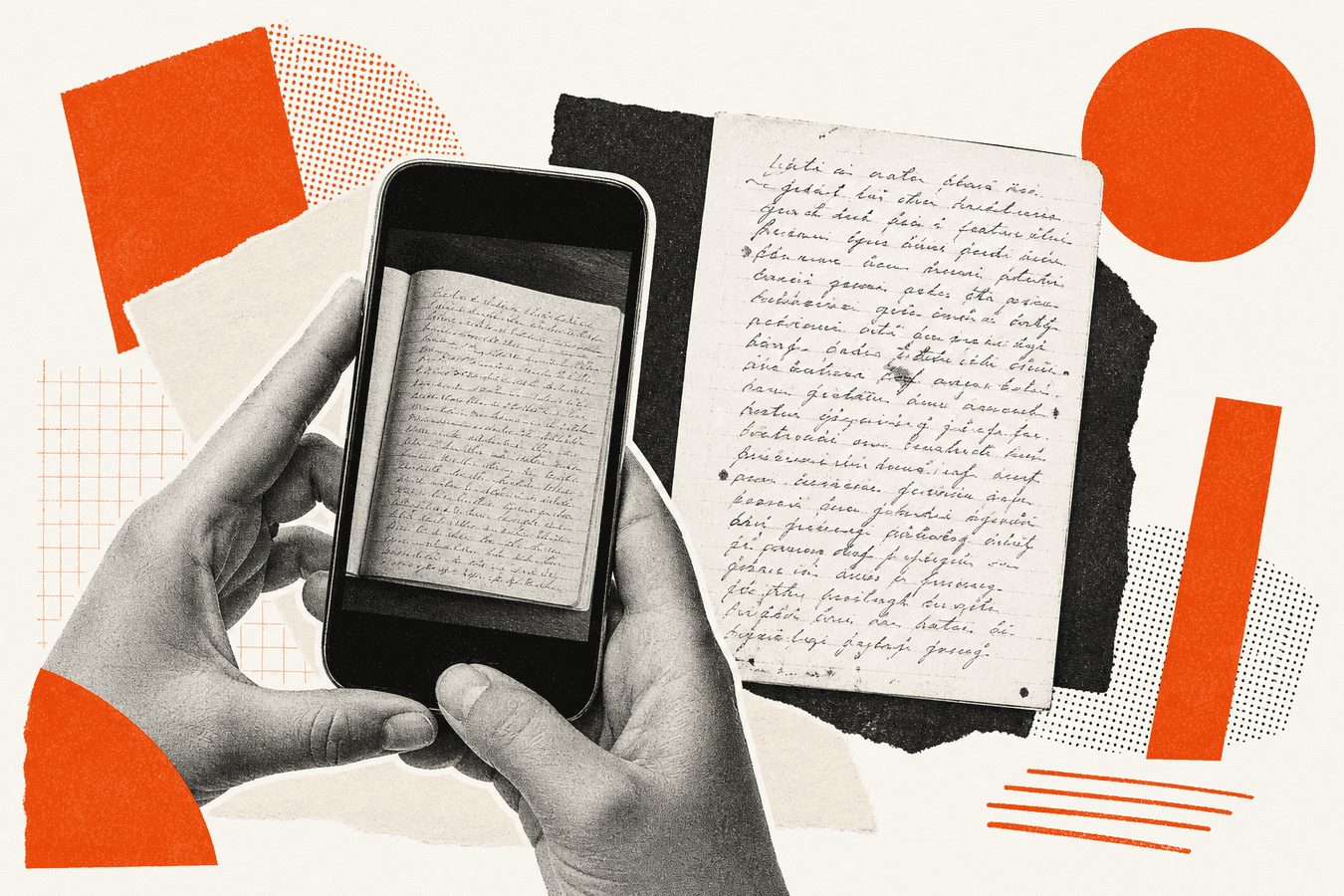
Google Lens is already on many phones. Point the camera, tap copy text, paste into Notes or email. Search volume for "google lens handwriting" and "google lens ocr" shows people expect that flow to read ink on paper. Dedicated handwriting OCR tools in the browser target the same problem with export formats, batch-friendly uploads, and models tuned for cursive and uneven photos. Lens wins on zero install and instant copy for a paragraph. Dedicated tools win when you need a clean file, repeated captures, or handwriting that Lens garbles. This comparison names both sides plainly.
Why the Lens vs OCR tool choice matters
Handwriting shows up in lecture notes, warehouse forms, family letters, and clinic paperwork. The job is never "OCR for fun." You need editable text quickly without retyping.
Lens feels free and familiar because it ships with Android and the Google app on iOS. Dedicated tools ask for an upload step in a browser. That extra step buys format control and sometimes better ink models.
Wrong choice wastes time. Lens paste into Word looks fine until you batch fifty pages. A browser OCR tool feels heavy when you only needed two lines from a receipt.
For capture quality, read phone camera tips for better OCR. For app-free paths, see convert handwriting to text without an app.
What Google Lens does well
Lens combines OCR with search and translation. For printed text on signs, menus, and books, it is excellent. Handwriting sits on the edge of that strength.
Speed on phone capture
Open Lens, frame the page, select text, copy. No account on a random website. For two sentences on a whiteboard after a meeting, that speed is hard to beat.
Related queries such as "google lens copy text" and "google lens handwriting to text" reflect this phone-first habit. Lens wins when the destination is a quick paste.
Printed and neat ink
Neat printing and dark ink on white paper work well. Lens was trained on huge image corpora. When the photo is sharp and the writing is regular, Lens often matches dedicated tools for short snippets.
Where dedicated handwriting OCR fits
Browser tools such as handwriting to text accept a photo upload and return text you download or copy as a block. They skip tying you to Google account features you may not want on work files.
Dedicated OCR fits longer pages, cursive, and workflows that export to CSV or JSON for internal apps. Lens copy-paste into Excel row by row does not scale.
Export and reuse
You often need a .txt file, not clipboard dust. Dedicated tools target export. You can drop the result into Obsidian, Slack, or a spreadsheet without reformatting Lens output line by line.
For table-like forms, see table photo to Excel without retyping. Handwriting OCR is step one; structured export is step two.
Hard handwriting and medical script
Doctor and archival script break phone OCR. Lens may return fragments. Dedicated pipelines sometimes fare better on cursive, though no tool promises perfection.
Read read doctor handwriting to readable text before you trust medical content OCR. Human review stays mandatory for clinical use.
Comparison table
| Factor | Google Lens | Dedicated handwriting OCR (Toolsy) |
|---|---|---|
| Install / account | Already on phone | Browser upload |
| Two-line quick copy | Wins | Heavier |
| Long pages / batch | Tedious | Stronger fit |
| Export as file | Manual paste | Direct download |
| Cursive / messy ink | Mixed | Mixed; verify sample |
| Work policy on Google | Google data policy | Check Toolsy privacy FAQ |
| Offline | Often yes | Needs network |
Lens wins row one for casual capture. Dedicated OCR wins middle rows for production notes.
When Google Lens is enough
Use Lens for a paragraph, a slide title, or a shipping label. Use it when you already live in Google mobile apps and policy allows Google processing.
Use it when errors are obvious and cheap to fix manually. Two wrong characters in a shopping list are not a crisis.
Use it when you cannot upload photos to third-party sites. Lens stays inside Google's client you already accepted.
When a dedicated OCR tool is better
Use handwriting to text when you photograph full notebook pages for school or genealogy. Use it when the same person captures weekly and wants consistent files.
Use it when IT forbids Google Lens on work captures but allows an approved vendor. Compare is it safe to upload documents online.
Use it alongside PDF and Markdown tools when one account should handle notes, scans, and RAG prep. See an iLovePDF alternative when you need Markdown and OCR.
For lecture capture, lecture notes photo to text walks the quality checks.
How to get better results on either path
Flat lighting beats ceiling shadow. Fill the frame with the page. Hold the phone parallel; keystone skew confuses every OCR engine.
Tap to focus on ink, not the desk. Wipe the lens. Retake before you OCR; no tool invents missing strokes.
After OCR, read aloud the first and last paragraph. Names and numbers need eye verification against the photo.
Privacy and platform notes
Lens images may sync with Google Photos or account history depending on settings. Review Google privacy controls on your device.
Browser OCR uploads bytes for processing. Toolsy discards uploads after the job per what happens to files after processing. Pick the path your policy allows.
Neither tool replaces a human for regulated records without review.
Frequently asked questions
Can Google Lens read handwriting?
Lens can copy many handwritten blocks, especially neat print. Results vary with blur, curl, and cursive. Searchers use "google lens handwriting" when they want phone capture. For long or messy pages, compare a dedicated handwriting to text run on the same photo.
How do I use Google Lens handwriting to text?
Open Lens, point at the page, select the text overlay, and copy. On iPhone, use the Google app Lens tab; on Android, Lens may live in Camera or Google app. Practice on a short sample before you rely on it in a meeting.
Is Google Lens OCR free?
Lens is included with Google mobile apps without a separate OCR fee. Data handling falls under Google's terms. Dedicated browser tools may offer free tiers with limits. Compare total cost including your privacy requirements, not just sticker price.
What is handwriting OCR?
Handwriting OCR is optical character recognition tuned for pen strokes rather than printed fonts. Query volume for "handwriting ocr" reflects demand for note digitization. It is harder than print OCR; expect edits after every pass.
When should I use a handwriting to text app instead of Lens?
Use an app or browser tool when you export long notes, share files with teammates, or repeat captures daily. Lens fits quick copy. Apps fit archives. Try convert handwriting to text without an app if you avoid installs.
Does Toolsy beat Google Lens on accuracy?
No honest vendor claims universal wins. Lens excels on quick print-like ink on phones. Dedicated tools may help on full-page export and some cursive samples. Photograph the same page both ways and count errors that matter: names, dosages, SKU codes.
Can I scan handwriting to text for Excel?
Yes, but structure may be lost. OCR gives plain text; spreadsheets need columns. Start with OCR, paste into a sheet, or use table photo to Excel without retyping when lines align like a grid.
Is uploading handwriting photos safe?
Photos may include faces, addresses, or PHI in the background. Crop before upload. Read is it safe to upload documents online. Use Lens locally when third-party upload is forbidden.
Does Google Lens work on iPhone?
Yes via the Google app. Related searches mention "google lens handwriting iphone." iOS also offers Live Text in Camera; compare both on your device. Workflow preference beats brand loyalty.
What should students use for lecture notes?
Students often start with Lens for speed, then move to browser OCR when notebooks pile up before exams. Improve photos with phone camera tips for better OCR. Keep photos organized by lecture date even if OCR fails once.
For pages that must become files, not clipboard snippets, try handwriting to text. For two lines after lunch, Lens remains the fast path when policy allows Google on the capture.
Turn handwriting into text
Upload a photo of handwritten notes and get editable text. We process for the response, then drop the upload.