Guides
Convert handwriting to text without installing an app
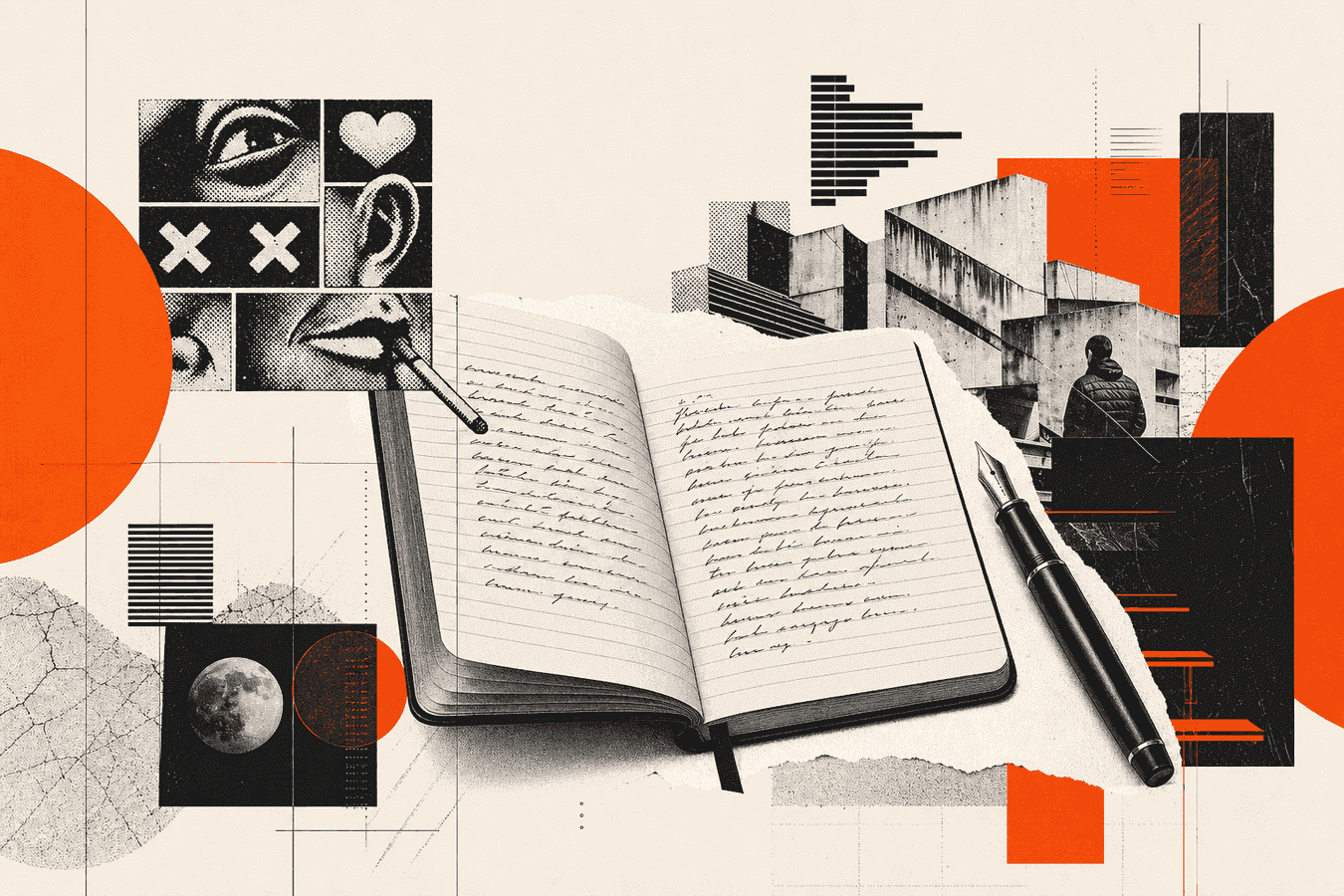
You can convert handwriting to text without installing an app. Open a browser tool, upload a clear photo or one-page PDF of the writing, then copy the typed result into Notes, Docs, or email. Skip the App Store when you only need a few pages, share a machine you do not control, or refuse another OCR install. Shoot one flat page with even light, upload JPG, PNG, WebP, GIF, or PDF up to 8 MB, and read the output against the paper for names, dates, and numbers. Unclear spots may show as [?]. For the convert step itself, use Handwriting to Text. If you want headings and lists kept for Notion or Obsidian, continue with Notes to Markdown.
Why people convert handwriting to text without an app
Paper notes pile up. Lecture pages, meeting scratchpads, letters, and forms stay unsearchable until someone types them. Search demand for handwriting to text stays high in the US, and many of those queries still expect a download. You may land on an app page when all you wanted was one page turned into pasteable words.
Installs create friction. Corporate phones block unknown stores. Shared library or lab PCs wipe apps at logout. Guests and parents borrow a laptop for ten minutes. A browser tab finishes the job and leaves nothing behind on the device beyond what you choose to copy.
Apps still win for daily pen capture on a tablet, offline stacks, or stylus workflows tied to GoodNotes, OneNote, or Nebo. This guide covers the other case: occasional paper that already exists, photographed once, converted online. You trade always-on ink capture for a short upload workflow.
Privacy still matters. An online OCR path sends an image for that request. Prefer pages you would be comfortable emailing. For contracts, medical charts, or IDs, use a local path or a specialist tool, and read Is it safe to upload documents online? before you upload.
What you can try before you open a converter
Start with tools already on the phone when the writing is short and sharp. Built-in Live Text on iPhone, Google Lens, and some gallery OCR features can pull a paragraph from a photo without a new install. Those paths work well for a grocery list or a sticky note. They struggle with dense notebook pages, faint pencil, and multi-column layouts.
Desktop “scan” apps and Microsoft Lens style tools help when you process the same notebook every week. They cost setup time. For a one-off letter or a single lecture sheet, the install often costs more minutes than the conversion.
Decide by volume. One to five pages: browser OCR is enough. A whole semester archive: batch on a tablet app or a desktop pipeline, then keep Markdown in a vault. Midway cases (a week of notes) often mix both: convert hard pages online, keep the rest as photos until you need search.
Phone camera OCR you already have
Open the photo in Photos or Gallery and look for a text select or Lens action. Select the block, copy it, and paste into a draft. Compare every proper noun with the paper. System OCR often drops line breaks and misreads similar letters (l / 1, O / 0).
If the phone finds almost nothing, the image is usually the problem: blur, shadow bands, or a page curved in a binder. Fix the photo first. Deeper camera habits for OCR live in Phone camera tips for better OCR.
When a dedicated handwriting app still makes sense
Buy or keep an app when you write on a tablet daily, need offline recognition, or export straight into a notebook system that owns your files. Apps shine for continuous handwriting layers, not for a crumpled receipt of notes you shot once.
Skip the App Store when you lack permission to install, when the page is already a scan or email attachment, or when you only need plain text for one document. The browser path below matches that job.
How to prepare the photo or scan
Garbage in stays garbage. Spend thirty seconds on the capture before you upload.
Lay the page flat. Straighten folds. Avoid glass glare from a desk lamp aimed at glossy ink. Fill the frame with the writing; crop out the desk clutter after if your phone crops poorly in-camera. Prefer daylight or a soft overhead lamp over a harsh side light that cuts a shadow across the lines.
Shoot one page per file. Multi-page PDFs under 8 MB can work, but mixed lighting and skewed pages lower accuracy. If the PDF is a phone “scan” with four pages stapled into one file, split it or convert page by page when quality dips.
Supported uploads on Toolsy handwriting OCR: JPG, PNG, WebP, GIF, and PDF, each up to 8 MB. Compress a huge phone HEIC export to JPG first if the file is oversized. Keep the original photo until you finish QA so you can re-shoot without losing the paper.
Names, math, and tables need extra care. Circle nothing on the page for the OCR; marks can confuse recognition. For study pages with headings and bullets, plan a second pass through Notes to Markdown after you have a clean text draft.
Convert handwriting to text in the browser
Open Handwriting to Text. You do not create an account for the free convert path. Add the image or PDF, wait for the typed draft, then copy the result into your editor.
Treat the first output as a draft. OCR does not replace a proofread. Walk the text with the photo beside it. Fix names, course codes, phone numbers, and totals before you share the file.
Toolsy processes the upload for the recognition job, then designs the file to be discarded shortly afterwards (typically within about one hour). Details sit in the Privacy Policy. Do not upload pages you would not send through a third-party OCR request.
Step-by-step on Toolsy
- Flatten and light the page, then shoot or export a scan.
- Open Handwriting to Text in any modern browser.
- Upload one clear page (or a small PDF) under 8 MB.
- Copy the returned text into Docs, Notes, Notion, or email.
- Search the draft for
[?]markers and for words that look almost right. - Save your edited text; keep or delete the photo on your device as you prefer.
If the result is mostly noise, re-shoot closer with even light instead of uploading the same blurry file twice. A second capture beats aggressive filters that invent contrast the ink never had.
After you have plain text
Paste into the destination that matches the job. Email and chat need clean paragraphs. Study systems often need structure. Notes to Markdown turns a notes photo into Markdown with headings and lists when the layout is visible on the page. Use that when you need outline shape for search and study, beyond a flat paste of words.
For lecture stacks and study-guide workflows, see Lecture notes photo to text. For marker boards after a standup, use Whiteboard to text and Whiteboard photo to text after meetings.
How to check the result and fix errors
Proofread with the original in view. Screen-only reading misses swapped letters that still look like English words.
Scan for proper nouns first. Classmates, clients, street names, and medicine-adjacent words fail often. Check every digit in dates, times, prices, and page references. Marked [?] spots mean the model refused a guess; fill those from the paper yourself.
Watch line order. Dense notebooks with margin notes can shuffle a side comment into the main paragraph. Restore the intended order in your editor. Split run-on lines where the writer used a hard return that OCR flattened.
If accuracy stays low after a clean re-shoot, the handwriting may be too faint, too cursive, or too small for a general OCR pass. Zoom a crop of the worst paragraph into its own upload. Still stuck? Type that block by hand; five minutes of typing beats twenty minutes of fighting one smudge.
Never treat medical or legal handwriting as finished after OCR. Prescription and clinical notes need a specialist path and human verification. That territory belongs to the doctor-handwriting tools and guides, not this general workflow.
Related jobs when plain text is not enough
Plain text solves search and paste. Some pages need more shape.
Notes to Markdown keeps visible headings and lists for Obsidian, Notion, or a repo. Handwriting to table (Pro) fits handwritten grids that should become CSV. Whiteboard to text fits marker walls, not notebook paper. Historical manuscript OCR fits faded letters and archive scans where spelling should stay as written.
Pick the tool from the page type. A whiteboard photo sent through notebook OCR wastes a clear shot. A ruled notebook can still run through a whiteboard tool, yet notebook-tuned handwriting OCR stays the shorter path.
Students and meeting note-takers often chain tools: handwriting to text for a messy first draft, Notes to Markdown for structure, then human edits for accuracy. Keep that chain short so you do not re-upload the same private page more times than you need.
Limits, privacy, and when to stop
Browser handwriting OCR has limits. Fancy calligraphy, heavy cross-outs, pencil on gray paper, and extreme cursive still fail. Multi-language pages mixed on one sheet can confuse a single pass. Files over 8 MB need a resize. Animated GIFs are a poor container for notes; prefer a still JPG or PNG.
Privacy is a judgment call. Toolsy does not use uploads to train its own models. Uploads exist for the job, then discard on the designed schedule (typically within about one hour). OCR and some AI features may send content to model providers for that request. Read the Privacy Policy and the checklist in Is it safe to upload documents online?. Keep passports, full medical charts, and sealed HR files off public converters.
Stop and type by hand when the page holds life-critical numbers you cannot risk misreading, when policy forbids cloud OCR, or when the writing is personal enough that you refuse any upload. The online path is a convenience for ordinary notes, not a mandate.
Frequently asked questions
How do I convert handwriting to text without installing an app?
Photograph one flat page with even light, open a browser handwriting OCR tool such as Handwriting to Text, and upload the image or a small PDF. Copy the typed draft into your notes app, then correct names and numbers against the paper. You leave nothing installed on the device beyond the browser you already use.
Does handwriting to text online work as well as a phone app?
For clear ink on white paper, online OCR often matches a casual app pass. Daily stylus notebooks, offline stacks, and app-specific export formats still favor dedicated apps. Choose online when you need a few pages fast without an install, and choose an app when handwriting is your primary capture method every day.
Can I convert handwriting to text for free in a browser?
Yes. Toolsy Handwriting to Text offers a free path with no sign-up for supported uploads. Stay inside the size limit (8 MB) and expect to proofread. Free tiers on any site can throttle heavy batch use; large archives belong on a paid or local pipeline.
What file types work for handwriting to text?
JPG, PNG, WebP, GIF, and PDF work on the Toolsy tool, up to 8 MB each. A sharp phone photo of one page is the common case. Export HEIC to JPG if the upload rejects the camera’s native format. Prefer still images over animated GIFs for notes.
How do I scan handwriting to text with only a phone?
Use the phone camera, not a flatbed, unless the paper is fragile or bound tightly. Hold the phone parallel to the page, fill the frame, and tap to focus on the ink. Upload that photo to handwriting OCR, or try the phone’s built-in text actions first for short blocks. More capture detail sits in Phone camera tips for better OCR.
Will messy handwriting still convert?
It can help, then you still edit. Clear, spaced writing wins. Cramped cursive, pencil ghosts, and overlapping margins produce more [?] markers and wrong guesses. Crop the worst region, re-shoot closer, and type the remaining stubborn lines yourself.
Is it safe to upload handwritten notes online?
Safe enough for ordinary class notes and non-sensitive lists when you trust the operator’s retention rules. Toolsy processes uploads for the request and designs them to be discarded shortly afterwards (typically within about one hour). Skip cloud OCR for medical, legal, or identity-heavy pages unless policy allows it. Use the checklist in Is it safe to upload documents online?.
Handwriting to text app vs browser: which should I pick?
Pick the app when you write on a tablet daily, need offline recognition, or live inside one notebook product. Pick the browser when you cannot install software, when the page already exists as a photo or PDF, or when you only convert a handful of pages. Many people keep both and use each for its lane.
How do I turn handwritten notes into Markdown after OCR?
Run a clean photo through Notes to Markdown when you want headings and lists preserved, or paste handwriting-to-text output into an editor and add # / - markers yourself. Check that heading levels match how you study or search later. Lecture-focused steps continue in Lecture notes photo to text.
Can Google Lens or iPhone Live Text replace an online converter?
For a short paragraph on a clean sticky note, yes. For a full notebook page with margins, diagrams, and faint ink, a dedicated handwriting OCR upload often returns a fuller draft. Try the built-in tool first; escalate to Handwriting to Text when the system OCR drops half the page or mangles the order of lines. For a full comparison, read Google Lens vs a dedicated handwriting OCR tool.
For camera technique, lecture workflows, meeting boards, and upload privacy, continue with Phone camera tips for better OCR, Lecture notes photo to text, Whiteboard photo to text after meetings, and Is it safe to upload documents online?. For a curated map of every handwriting path on Toolsy, see Handwriting OCR: complete guide.
Convert handwriting to text online
Upload a photo or PDF of handwriting, copy the typed result, and edit. We process for the response, then discard the upload (typically within about one hour).