Guides
PNG vs JPG for screenshots and UI captures
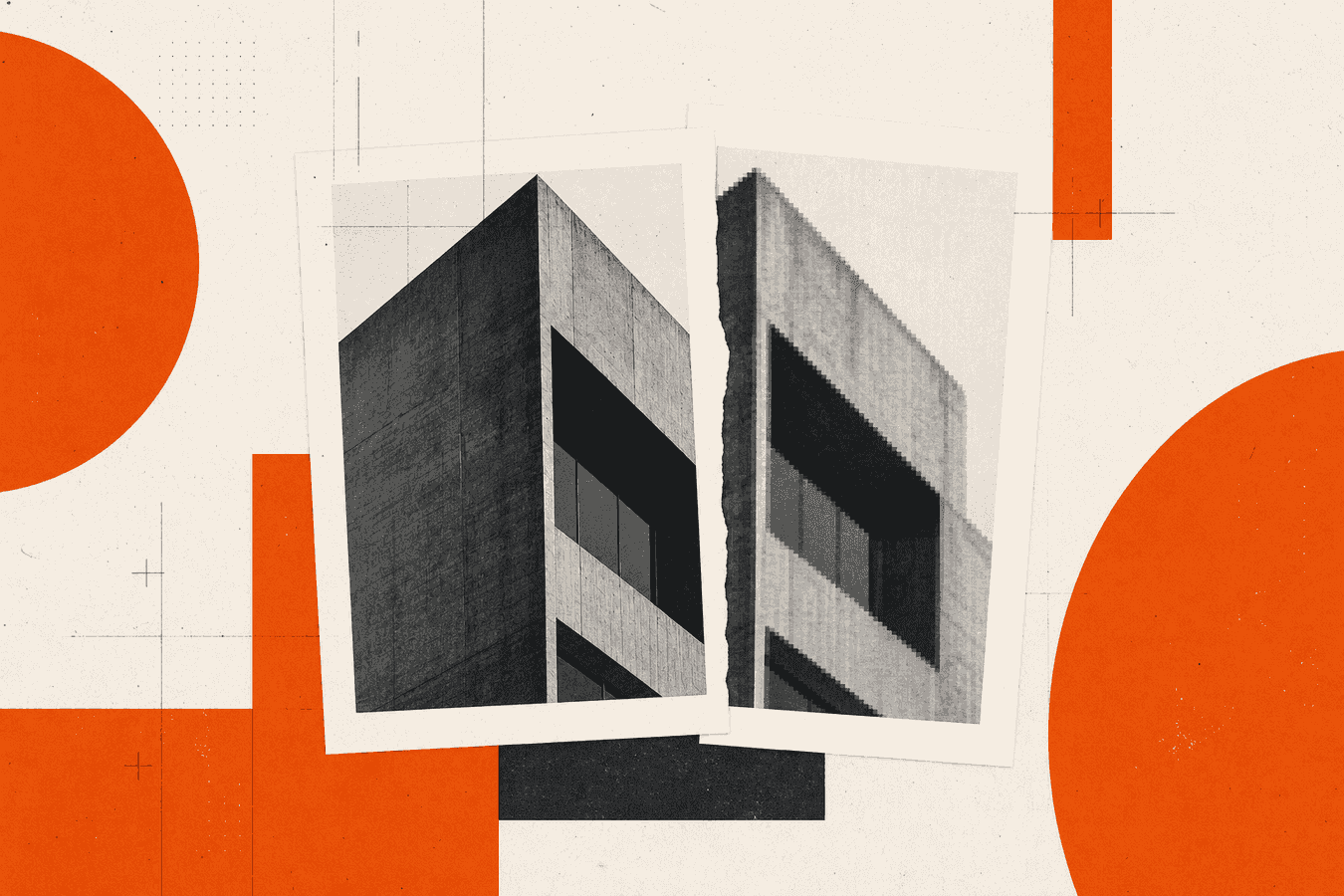
Your screenshot tool saves a PNG by default. You attach it to a ticket and the file weighs four megabytes. A colleague asks for JPG because their wiki caps uploads at one megabyte. That moment is the png vs jpg question for UI work, not for vacation photos. PNG keeps flat color and small text crisp because it stores pixels without lossy compression. JPG shrinks byte count by blending similar areas, which can blur thin fonts and soft gradients on a dashboard capture. For bug reports and docs, PNG is often the safer default. For email, chat, and size-limited forms, JPG at moderate quality is usually fine. When you already have PNG and need JPG, PNG to JPG converts one file with a quality slider so you control the tradeoff.
Why screenshot format trips up bug reports and docs
Most operating systems and browser extensions export screenshots as PNG. That choice made sense when storage was tight on disk but bandwidth was the real bottleneck today. You end up with a perfect capture that nobody can upload.
Support portals, Notion pages, Jira attachments, and LMS homework uploads often list a max file size without naming a format. PNG blows past the cap first. You re-export blindly as JPG, the text turns fuzzy, and the developer cannot read the error code in the corner.
Mixed teams make it worse. Design wants PNG for Figma comparisons. Sales pastes JPG into Slack because it loads faster on hotel Wi-Fi. Without a simple rule, every capture starts a thread about formats instead of the actual bug.
The fix is not one format forever. You pick PNG when pixel-perfect UI matters and JPG when the destination rewards smaller files. You convert only when the pipeline demands it, not because JPG is "better" in abstract.
What PNG and JPG do differently on screen captures
People search difference between png and jpg when a ticket template lists both. PNG (Portable Network Graphics) uses lossless compression. Every pixel you captured stays exact after save. JPG (JPEG) uses lossy compression tuned for continuous tone. It assumes smooth gradients and throws away detail humans may not notice in a photo.
UI screenshots break that assumption. A settings panel is mostly flat gray, one-pixel borders, and 12 px type. JPG treats those sharp edges as noise and smooths them. A photo of a sunset survives that math. A modal dialog with gray-on-gray labels does not.
Both formats can store full color. Neither carries transparency into JPG; if your capture includes a transparent window chrome, converting to JPG fills empty areas with white. PNG keeps alpha when you need it for slides or design handoffs.
PNG and sharp text on UI captures
Thin fonts and hinting survive PNG because nothing re-blends neighboring pixels. Red error text on white stays red at the pixel level. Icons with hard edges stay square.
That matters when someone zooms to 200 percent in a PDF doc or a legal review tool. PNG also survives repeated open-and-save cycles in an editor without stacking compression damage, which helps when you annotate and re-export the same capture several times.
The cost is file size. A full-screen 1440p PNG can run two to six megabytes where a careful JPG lands under one. Internal tools with generous limits may never notice. Customer-facing upload forms will.
JPG and photo-like screenshot content
Some captures are really photos: a video call grid, a game scene, a map with satellite imagery. JPG often matches how those pixels behave. Smooth areas compress well; you save space without obvious blockiness.
JPG also wins when the reader views on a phone at normal zoom and will never pixel-peep menu labels. Status pages with hero photography and a small alert banner can go JPG if the text is large enough.
Pick quality around 70 to 85 percent for mixed UI-and-photo captures. Lower settings save more bytes but show artifacts around text first. Test at 100 percent zoom before you send.
When PNG is the better screenshot format
Default to PNG when the capture must prove exact UI state. QA steps, regression comparisons, accessibility audits, and security reviews all count. A missing pixel in a toggle can change the story.
Use PNG when the image includes lots of text: terminal output, log stacks, code snippets rendered as UI, spreadsheet grids. JPG smears single-pixel grid lines that developers rely on.
Keep PNG when you will edit repeatedly: arrows, blur boxes, numbered callouts in Snagit, ShareX, or Preview. Each JPG save adds loss. PNG or a working copy in PNG until the final export avoids stacked damage.
Use PNG when the destination accepts it and size is not blocking you. If your knowledge base allows five megabytes, ship the crisp file. Developers spend less time asking for a re-shoot.
When JPG is enough for screenshots
Switch to JPG when the upload form shows a hard megabyte cap and PNG fails. Switch when you paste into email clients that downscale anyway. Many recipients view on phones; they will not inspect anti-aliasing on a 10 px caption.
JPG fits chat tools where inline previews load dozens of images in one channel. Slack, Teams, and Discord recompress uploads. Starting from a reasonable JPG avoids double penalty from an enormous PNG source.
JPG works for slides where the projector resolution hides small type. If the screenshot is decorative context and the speaker reads the numbers aloud, extreme sharpness matters less.
Use JPG for customer-facing status pages when the capture is mostly photography and large headline text. Keep PNG for internal attachments that feed engineering.
Email and chat attachment limits
Email gateways still enforce roughly 10 to 25 MB total per message, and many corporate servers go lower. A thread with five full-screen PNGs can bounce silently or strip attachments.
Export JPG at 80 percent quality, then check the byte count. If you still exceed the cap, run Compress image on the JPG without changing format again. For attachment strategy and quality tradeoffs, see Compress images before email attachments.
Name files clearly (checkout-error-2026-08-29.jpg) so mobile readers know what they open before they tap.
Documentation sites with size caps
Confluence, GitBook, and some static doc hosts warn when an image exceeds two megabytes. Wiki admins set those rules to keep backups small.
Try JPG first at high quality. If text looks soft, crop to the relevant panel instead of shrinking the whole desktop. Cropping removes empty desktop wallpaper that JPG and PNG both waste bytes on.
If the doc system accepts WebP but your capture tool does not export it, convert from PNG only after you confirm WebP displays for all readers. Older PDF pipelines may still rasterize oddly.
How to convert PNG to JPG without muddy UI text
Conversion is a one-way quality trade unless you keep the PNG master. Open PNG to JPG, upload the PNG up to 10 MB, and move the quality slider before download. Processing runs on the server briefly; the upload is not kept after the response. Free daily quota applies.
Start at 85 percent quality for text-heavy UI. Compare the JPG to the PNG at 100 percent zoom on the same monitor. If serif labels look dusty, raise quality or crop tighter instead of lowering quality further.
Transparency in the PNG becomes white in JPG. If your capture used a transparent margin, expect a white box around the UI. Re-capture on a solid background or trim margins in Crop image before conversion.
Batch several captures by converting one at a time through the same settings note in your ticket template. Consistent quality makes reviewers trust the set.
Avoid chaining PNG to JPG to JPG through multiple tools. Each lossy pass hurts text more than the first.
Check the export before you file the ticket
Open the JPG at full size beside the PNG. Scan corners where error codes sit. Read the smallest label you care about. If it fails, revert to PNG or raise quality.
Upload to a draft page in the same system the audience uses. Mobile preview matters when PMs review on phones. Desktop-only checks miss fuzzy text that looked fine on your 27-inch monitor.
If the portal still rejects the file, read the error for dimension limits, not just format. Some tools cap width at 1920 px. Resize image handles pixel limits separately from format choice.
Send yourself a test email or chat message when the capture carries sensitive UI. Confirm the preview matches the attachment.
Related tools for screenshot workflows
Not every job ends at format choice. Compress image shrinks JPG or PNG weight when the format stays the same. JPG to PNG helps when a legacy tool demands PNG and you only have JPG from an older archive.
For CMS uploads that reject modern formats, read WebP to JPG for older CMS and email uploads. For vector icons in slide decks, SVG to PNG for social previews and slides covers Pro raster export.
Strip location and camera metadata before you post captures that include map widgets or photo embeds. Remove EXIF GPS before sharing kids' photos explains the privacy angle for any public share.
Limits, privacy, and when PNG still wins
Toolsy image tools process uploads briefly, then discard them. That suits one-off ticket attachments; it is not an archive. Keep PNG masters on your drive when you may re-edit.
Free daily quota applies on format tools. Marketplace presets use a separate pool and do not apply here.
Extreme compression on JPG can expose banding in large flat gray areas typical of admin panels. When banding appears, PNG or a higher JPG quality beats another lossy pass.
When legal or compliance requires immutable evidence, store PNG (or PDF with embedded PNG) and document the hash. JPG alone is weaker for pixel-level disputes because lossy compression changed the bits.
Frequently asked questions
Is PNG or JPG better for screenshots?
PNG is better when you need exact pixels for text, thin borders, and repeated edits without quality loss. JPG is better when you must fit upload or email size limits and the audience views at normal zoom on phones or laptops. Many teams default to PNG internally and convert to JPG only for external portals. Test one representative capture at the quality you plan to use before you batch-export a whole release folder.
What is the difference between PNG and JPG for UI captures?
PNG stores UI captures losslessly, so fonts and one-pixel lines stay crisp. JPG reduces file size by blending similar pixels, which can blur small type and soft gray backgrounds common in dashboards. PNG files are usually larger. JPG files load faster on slow networks when quality is set high enough. Neither format is wrong; the destination rules pick the winner.
Does converting PNG to JPG reduce screenshot quality?
Yes, JPG compression removes information PNG kept. At high quality settings the loss may be invisible on large headings but visible on 10 px gray helper text. You control the tradeoff with the quality slider in PNG to JPG. Keep the PNG original if you might re-export. Never convert the same capture to JPG multiple times in a row.
Why are my screenshot PNG files so large?
PNG preserves every pixel on full-screen captures, including empty desktop wallpaper and solid menu bars. High resolution displays (1440p, 4K) multiply pixel count. Lossless compression helps but cannot match JPG on smooth areas. Crop to the relevant window before save, or convert to JPG at 80 to 85 percent quality when the portal demands smaller files.
When should I use PNG vs JPG for documentation?
Use PNG for internal engineering docs, QA evidence, and any page where readers zoom into UI details. Use JPG for customer help centers with strict size caps, slide decks shown on projectors, and chat threads with many inline images. If your doc tool accepts both and size is not blocking, PNG saves back-and-forth about unreadable text. When size blocks upload, JPG plus a tight crop beats a huge PNG every time.
Can JPG screenshots show transparent backgrounds?
No. JPEG has no transparency channel. Transparent areas in a PNG become white (or the converter background) when you save as JPG. Re-capture against a solid color that matches your doc theme, or stay on PNG when alpha matters for design handoffs.
What JPG quality should I use for screenshots?
Start at 80 to 85 percent for mixed text and imagery. Raise quality if small gray labels look fuzzy at 100 percent zoom. Lower quality only after you crop to the panel you need, not before. Below 70 percent, block artifacts often appear on flat gray admin backgrounds before they appear on photos.
Is PNG to JPG conversion free on Toolsy?
Yes. PNG to JPG uses the free daily quota on image tools. No account is required for the free limit. Files up to 10 MB fit typical desktop captures. Processing is brief on the server; the file is not kept after you download.
Should I use PNG or JPG for bug tracker attachments?
Use PNG when developers must read exact error strings, version numbers, or pixel-level layout bugs. Use JPG when the tracker enforces a low megabyte cap and the UI uses large type. Mention which format you chose in the ticket so QA can reproduce. Attach a cropped JPG rather than a full-screen PNG when the bug is localized to one dialog.
How does PNG vs JPG compare to WebP for screenshots?
WebP can beat both on size at similar visual quality, but many older CMS and email tools still reject it. PNG and JPG remain the universal pair for attachments. If your pipeline accepts WebP, test display in every reader before you switch defaults. For CMS rejection of WebP, see WebP to JPG for older CMS and email uploads.
For email-specific size tactics after you pick JPG, read Compress images before email attachments. For alpha that disappears after a JPG export, see Transparent PNG to JPG: white background issues. For a wider format map, see Image formats cheat sheet for marketers. For social preview dimensions unrelated to bug screenshots, see OG image size and aspect ratio that still previews.
Convert PNG to JPG
Upload a screenshot PNG, pick quality, and download a smaller JPG. Brief server process; free daily quota applies.