Guides
Whiteboard photo to text after meetings
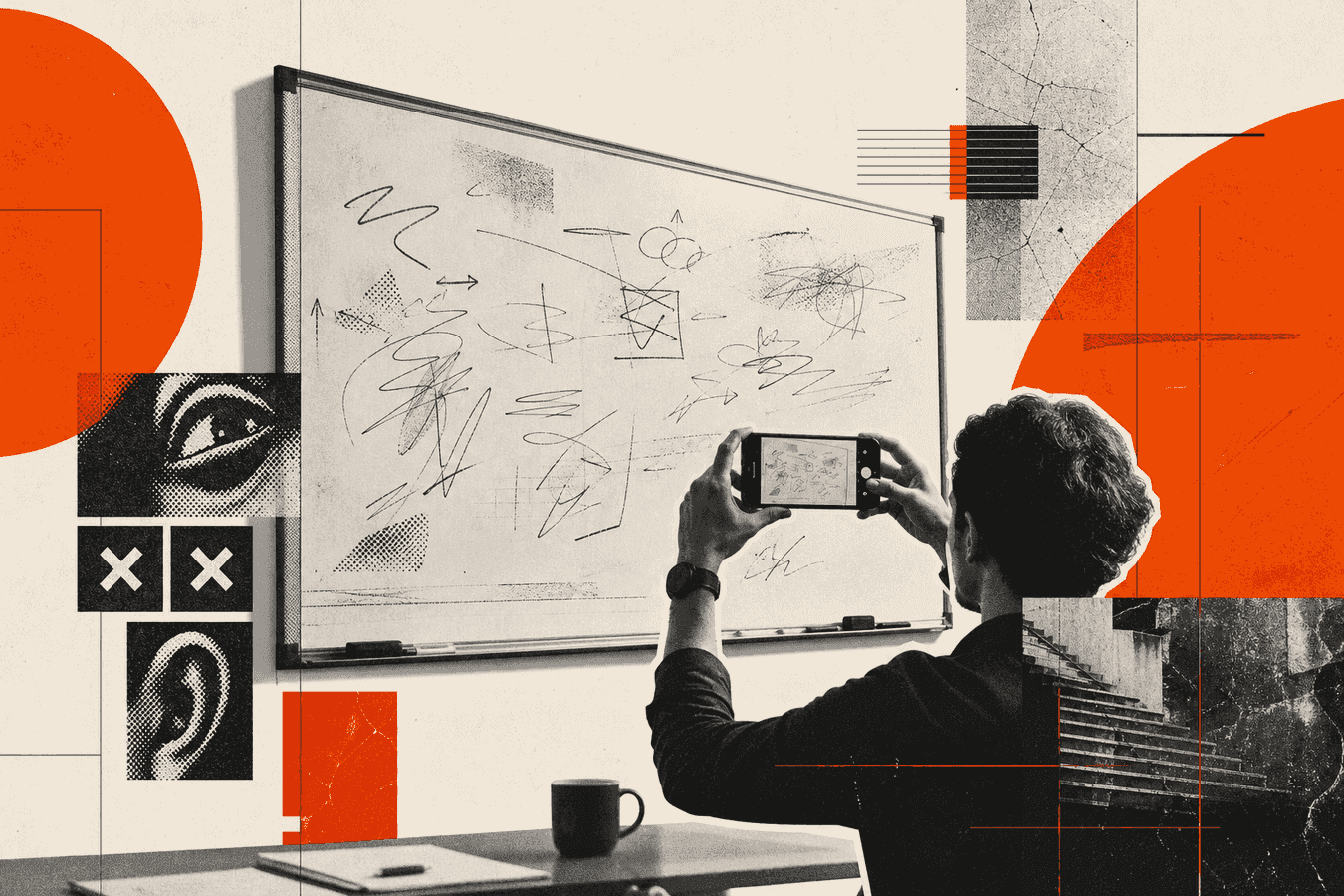
The meeting ends. Someone erases the board for the next room. Your only copy is a phone photo with glare, crossed-out arrows, and three colors of marker. Retyping wastes the hour you already spent. A whiteboard photo to text path reads that image and returns words you can paste into notes, Slack, or a ticket. You still check names and numbers against the picture. You skip the blank page. For a clear board shot, start at Whiteboard to text. For a notebook page from the same session, use Handwriting to text.
Why meeting boards vanish after the room clears
Conference rooms recycle space. Facilities wipe boards on a schedule. The next team walks in and needs the wall. Sticky notes fall off. Flip-chart sheets get folded into a bin. If nobody owns the capture, the decisions live in memory and a blurry camera roll.
Voice recordings help with discussion. They do not preserve the grid someone drew for a launch plan. Chat summaries miss the side column of owners and dates. The board was the shared surface. The photo is the artifact. Editable text is what you can search next week.
Teams that care about this habit assign one person to shoot the board before anyone grabs a cloth. That person stands back, frames the writing, and sends the file before the lights go off. The OCR step comes later at a desk with a larger screen. You do not need a special camera. You need a sharp frame and a few minutes of proofreading.
Remote attendees never saw the physical wall. A PNG in the thread helps, yet they cannot quote a line into a sprint board without typing. Converted text closes that gap. Treat the download as a draft of the claims on the wall, not a legal transcript of every gesture.
What you can try yourself before OCR
Start with the photo you already have. Open it full screen. If half the board is cut off, go back and shoot again while the ink still exists. Crop people and chairs from the edges when you can. OCR ignores decorative borders better when the writing fills the frame.
Try reading the board yourself and typing the action items. That works for five bullets. It fails when the wall holds two columns, a rough timeline, and a dozen names. OCR earns its keep on volume and layout you would otherwise abandon.
Phone gallery “live text” or similar features can lift a few printed words. Marker handwriting on a glossy board often breaks those shortcuts. Dedicated whiteboard OCR is built for that mess: lists, columns, faint arrows, mixed print and script. You still verify.
If the session lived on a digital board (Miro, Microsoft Whiteboard, FigJam), export text or CSV from that product. Do not photograph a monitor and hope. Screen glare and UI chrome waste OCR. Physical wall or flip chart: photo path. Native digital board: native export.
Apps that promise a “whiteboard scanner” want an install and sometimes a subscription. A browser upload is enough for one post-meeting dump. If you need the same job without an app for paper pages, the sibling guide on converting handwriting to text without an app covers that flow.
How to photograph the board for whiteboard OCR
Stand square to the wall when the room allows. Hold the phone level. Fill the frame with writing, not ceiling tiles. Tap to focus on a dense line of text, then shoot. Take two frames: one wide for context, one tighter if the board is huge.
Move closer for small handwriting. Step back for a full agenda grid. Prefer more than one image over a single shot that squeezes distant corners into mush. Upload the clearest frame first. Add a second crop if a side panel was soft.
Turn off the flash if it throws a white blob across dry-erase ink. Room light from the side beats a specular hit from a window behind you. Wipe a greasy board if your team agrees the ink still reads after cleaning dust, not the notes themselves.
Light, glare, and markers
Glossy whiteboards reflect overhead LEDs as bright ovals. Those ovals erase letters under OCR. Shift left or right until the reflection sits on empty space. Angle the phone a few degrees if needed, then straighten the crop later.
Dark markers on a clean white field read best. Pastel markers and half-dry reds fail more. Chalk on a dark board works when contrast is high and dust is low. Flip-chart paper with thick markers is friendlier than a scratched wall covered in ghost ink from last week.
If two colors mark priority, the transcript may keep the words and drop the color cue. Add a short note in your doc (“red = blocked”) after you paste. Color is meaning on the wall; plain text needs that meaning stated.
Framing, distance, and multi-panel boards
A three-panel wall needs three photos or one careful panorama you crop into pieces. OCR on a distant full-room shot loses the rightmost column. Label files in order (board-1, board-2) so you paste sections in sequence.
Include the title block at the top when it exists. Meeting name and date help you file the .txt later. Exclude the clock and the fire exit sign; they add noise.
For a longer checklist on focus, shadows, and phone settings that apply to any OCR shot, see phone camera tips for better OCR.
Convert the whiteboard photo to text
Open Whiteboard to text. Upload a JPG, PNG, WebP, GIF, or PDF up to 8 MB. Prefer the sharpest board photo, not a screenshot of a chat preview. Wait for the transcript. Copy or download the plain text.
The model aims to keep headings, lists, columns, and short paragraphs. Arrows and rough diagrams become brief notes such as a diagram hint in parentheses when that link matters for meaning. Unreadable words show as [?] instead of a confident wrong guess. Glare blobs, wall borders, and people in the frame should be ignored; board content should remain.
Paste into your notes app. Keep the photo beside the text for the first pass. Free use follows the tool’s normal quota and size rules. You do not need a desktop install for a single meeting dump.
If the output looks like one long paragraph, the board may have lacked clear list structure, or the photo may be soft. Re-shoot with higher contrast, or split the wall into two uploads. Dense brainstorm clouds often need human regrouping after OCR.
How to check names, numbers, and diagrams
Read every proper name against the photo. Marker loops turn “Jon” into “Jim” and “Q3” into “03”. Ticket IDs, dollar amounts, and dates deserve a second look. Fix those before you send the notes to the group.
Scan for [?] markers. Resolve each one from the image or mark the item as unknown in the doc. Do not leave a silent gap where a deadline sat.
Diagrams do not become perfect boxes in text. You get a short description of the link between parts. Redraw a critical flowchart in your wiki if the picture carries the decision. Keep the photo attached for anyone who needs the spatial layout.
Lists and columns
Two-column boards (owners | tasks) may land as interleaved lines. Rebuild the table or two lists by eye. Count items on the wall and in the text. A missing bullet is the usual failure, not an extra one.
Numbered agendas should keep order. If step 4 appears before step 2, the reading order guessed wrong. Reorder from the photo. Workshop affinity maps (clusters of stickies) need more human editing than a linear agenda.
Arrows, stickies, and unreadable marks
Arrows between boxes matter when they encode workflow. Confirm the OCR note matches the direction on the wall. Stickies with tiny handwriting may become [?] rows. Type those by hand if they are the action list.
Crossed-out ideas can still OCR as live text. Delete strikes you can see in the photo. Circle-and-star priority marks may vanish; restate priority in words after paste.
Related jobs: notebooks, lectures, and structured notes
The same meeting often leaves a personal notebook page. That is a handwriting job, not a wall job. Use Handwriting to text for ruled pages and margins. Use whiteboard OCR for the shared wall the room saw.
Students and workshop leads who photograph lecture boards or class flip charts follow a similar capture habit. The study-focused write-up is lecture notes photo to text. Tutors and teachers who grade homework photos rather than board shots should read Digitize handwritten assignments from homework photos for grading. Swap meeting owners for course topics; the photo rules stay close.
When you want Markdown headings and lists for a knowledge base, run clear notes through Notes to Markdown after you fix the transcript. OCR first, structure second. Do not expect one upload to invent a polished wiki page from a chaotic brainstorm cloud.
Limits, privacy, and when not to upload
Whiteboard OCR fails on heavy blur, extreme angle, and ink that shares a tone with the board. Ghost writing from incomplete erasures confuses lines. Rainbow pastel markers on a dirty surface waste a run. Fix the photo before you blame the tool.
Skip public upload for boards with customer secrets, unreleased financials, health details, or anything your policy keeps off third-party servers. Use an approved internal path for those sessions. For how Toolsy handles uploads in general, read Is it safe to upload documents online? and What happens to files after processing?.
The tool uses the file for recognition and does not keep it longer than needed for the result. That is still an upload. If legal or security review forbids it, photograph for your vault and type offline.
Do not treat the transcript as an official minutes record without a human owner. OCR assists capture. Your team still assigns actions and confirms wording.
Frequently asked questions
How do I convert whiteboard to text after a meeting?
Photograph the board before anyone erases it. Upload the clearest image to Whiteboard to text. Copy the returned text into your notes, then check names, dates, and numbers against the photo. Send the cleaned version to the attendees while the discussion is still fresh.
Does whiteboard OCR work on messy marker handwriting?
It helps most when the photo is sharp and the ink contrasts with the board. Messy writing still produces useful drafts, yet short words and numbers fail more. Treat the output as a first pass. Fix anything you would not bet a deadline on.
Can I use whiteboard to text online without installing an app?
Yes. The Toolsy path runs in the browser. You upload a photo and copy text. Skip “whiteboard scanner app” installs when you need a one-off meeting dump. Keep an app if your workplace already standardizes on one for every capture.
What file types work for a whiteboard photo to text upload?
JPG, PNG, WebP, GIF, and PDF up to 8 MB are supported. A single clear photo beats a huge multi-page PDF of unrelated slides. Compress if you must, but keep focus sharp; a tiny blurry file fails harder than a sharper file a bit over your comfort size.
How is this different from Microsoft Whiteboard ink to text?
Microsoft Whiteboard ink to text converts digital pen strokes inside that app. Whiteboard photo OCR reads a camera image of a physical board, chalkboard, or flip chart. If your session was already digital, export from the product. If the wall was dry-erase in a conference room, shoot and upload.
Can ChatGPT convert a whiteboard photo to text?
Some chat tools accept images and return a reading. Results vary by model, prompt, and whether the image stays in that product’s history. A dedicated whiteboard to text tool targets board layout, [?] for gaps, and a copy-ready transcript. Pick the path your security policy allows.
How do I OCR a photo of a chalkboard or flip chart?
Use the same upload flow. Strong chalk contrast and thick flip-chart markers read better than pale dust on a green board. Avoid shooting into stage lights. Verify any math or names the same way you would for a whiteboard.
Should I convert the whiteboard to PDF instead of text?
A PDF or PNG archives the look of the board. Plain text lets you paste owners into tickets and search later. Many teams keep both: the photo for layout, the transcript for actions. OCR does not replace a visual archive when diagrams are the point.
Will the tool keep my meeting whiteboard photo?
Files are used for recognition and are not kept longer than needed to return the result. Still avoid uploading restricted content. When policy is unclear, ask security before you send a board with customer data through any online OCR.
What if part of the board is unreadable in the result?
Look for [?] in the transcript and resolve those spots from the photo. Re-shoot dim corners with better light if the ink still exists. Type a short line by hand when a sticky is too small. Partial recovery plus a human fill-in beats a blank page.
For paper notes from the same week, continue with handwriting to text without an app. For cleaner source photos next time, keep phone camera tips for better OCR handy before the next workshop.
Whiteboard photo to text
Upload a board photo, get plain text you can paste into docs or chat. We process for the response, then drop the upload.