Guides
Receipt OCR for expense reports headed to QuickBooks
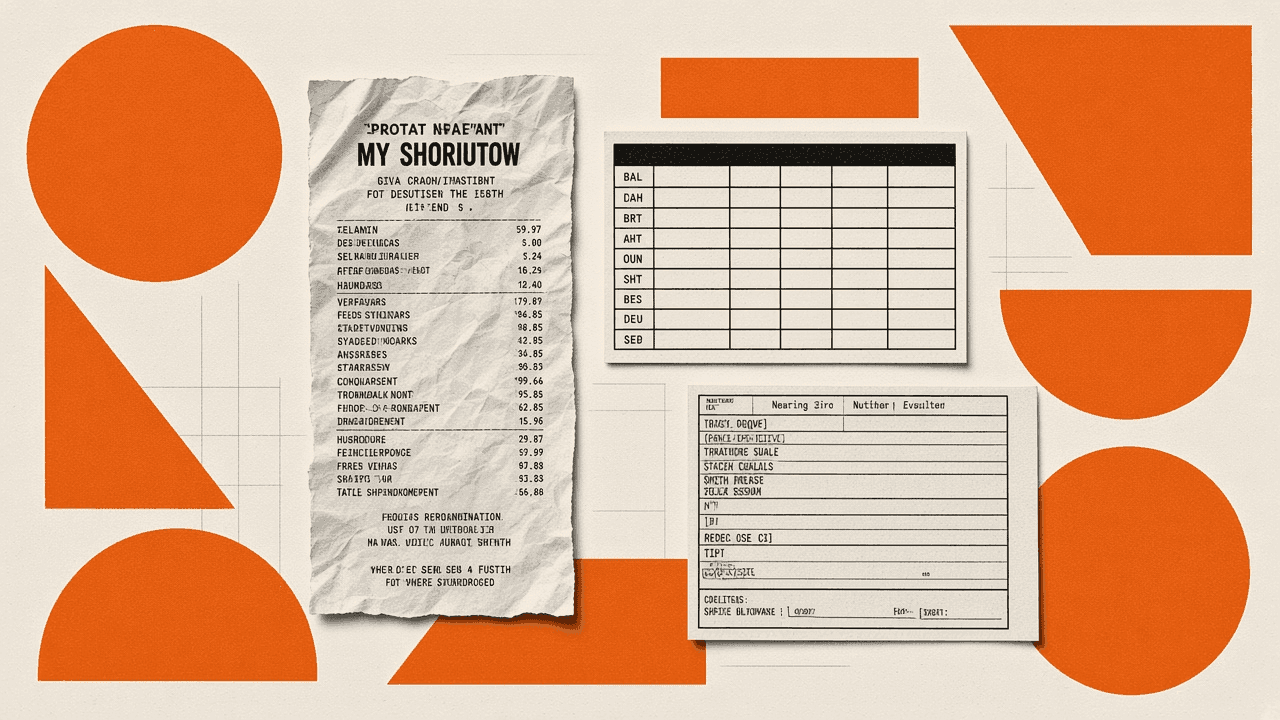
Expense reports stall when receipts live as phone photos while QuickBooks expects categorized money. Receipt OCR turns a clear slip into spreadsheet rows you can check, then you move those numbers into QuickBooks Online or Desktop by hand, bank upload, or whatever import path your accountant already uses. Receipt to Excel (Pro) builds CSV with date, merchant, item, quantity, price, line total, receipt total, and category. Toolsy is not a certified QuickBooks app and does not OAuth into your company file. Treat the CSV as a draft worksheet. For general month-end bookkeeping without the QuickBooks framing, see receipt photo to Excel for bookkeeping.
Why QuickBooks still needs a clean expense sheet
QuickBooks records vendors, accounts, and tax settings. It does not magically fix a blurry thermal tape from three weeks ago. Built-in mobile capture helps some users; mixed personal/business rolls and faded ink still leave gaps.
Freelancers and small teams often gather receipts in a folder first, then post a batch. A spreadsheet is the bridge: one place to fix OCR mistakes, assign classes or customers, and match card charges before anything hits the ledger.
Skipping the bridge means typing merchant names twice or posting wrong totals that your bookkeeper has to unwind. The OCR step only pays off if you verify amounts against the paper or the bank line.
This guide covers purchase receipts for expense reports. Vendor invoices and packing slips are adjacent jobs with different columns; keep them on their own tools and workflows.
What receipt OCR does versus a QuickBooks app
Receipt OCR reads register layout and emits structured rows. You download CSV, open it in Excel or Google Sheets, and correct cells. That is assistive data entry.
A certified QuickBooks app connects with Intuit credentials, posts expenses or bills into your company, and often attaches the image. Toolsy does none of that. If a vendor claims “sync to QuickBooks,” that is a different product class.
You can still use both: OCR to clear the photo pile, then enter or import using Intuit’s own tools. Honesty about the split prevents false expectations and bad vendor mapping.
Pro tier applies on Receipt to Excel. Files are processed for the result and removed after processing on the usual Toolsy schedule; still avoid uploading unnecessary personal data printed on slips.
Photograph receipts so OCR and QuickBooks both survive
Shoot the day of purchase when you can. Thermal ink fades in heat and light. Lay the slip flat, fill the frame, include the total and tax lines, and avoid flash glare.
One photo per receipt keeps CSV rows aligned. Long tapes need overlap shots or a fold that keeps the total visible. Reshoot anything you cannot read on screen; software will not invent a missing total.
Card slips without itemization may only give merchant, date, and amount. That can be enough for a single expense line in QuickBooks if your policy allows it.
Camera habits that help any OCR stack are listed in phone camera tips for better OCR.
Glare, folds, and faded totals
Side window light beats overhead LEDs on glossy tape. Smooth wallet folds before you shoot. If the total is gone on paper, pull the amount from the bank feed and mark the receipt unreadable instead of guessing.
One row per line vs one row per receipt
Receipt to Excel emits one row per line item and repeats the receipt total on each row for checks. For QuickBooks you may collapse to one expense per merchant visit after you verify. Keep the detailed CSV as your audit copy; post the summary your policy requires.
Build the expense CSV, then map fields for QuickBooks
Download CSV from the tool. Open it and set the date column to a real date type. Confirm merchant spelling matches vendors you already use in QuickBooks so you do not create duplicates.
Add columns your firm needs before posting: GL account, class, billable customer, payment account, memo. Fill those in the sheet while the paper is still on your desk.
Sum receipt totals and compare to the card statement for the period. Fix OCR 1/7 swaps and missing decimals here, not after posting.
Save a dated file such as expenses-2026-09-batch.csv next to the receipt images. Your future self will thank you during audit season.
Manual entry from the sheet
For small batches, open QuickBooks, create an expense or check, and copy merchant, date, amount, and account from the verified row. Attach the photo from your folder when your plan supports attachments.
This path is slow per row and safest for odd receipts. Use it when you have ten slips, not two hundred.
Bank upload and review queues
Many teams upload a bank or card CSV into QuickBooks and categorize in For Review. Your OCR sheet then becomes the cheat sheet for payee names and accounts, not the upload file itself. Match amounts carefully; duplicates appear when you both upload the bank file and enter the same expense by hand.
Third-party importers and accountants’ tools exist for bulk expense CSV. Use only what your bookkeeper approves. Toolsy does not certify those paths.
Verify before anything hits the ledger
Check every receipt total against the paper or PDF. Category guesses from merchant names are starting points, not tax advice.
Watch multi-currency and tips. OCR may miss tip lines on restaurant slips. Add them explicitly if your policy expenses tips.
Keep images. QuickBooks attachments and a parallel folder both help when a charge is questioned months later.
If a row looks wrong and the photo is bad, reshoot or enter from the bank description only. Do not invent line items.
Related jobs next to QuickBooks expenses
Month-end piles without QuickBooks framing: receipt photo to Excel for bookkeeping. Freelancer vendor PDFs: invoice OCR for freelancers. Warehouse receiving docs: packing slip workflows on packing slip to Excel.
CSV hygiene after OCR: export OCR tables to CSV best practices.
Limits, privacy, and non-goals
Toolsy is not Intuit, not listed here as a QuickBooks App Store integration, and not a substitute for your accountant. Tax categorization remains your responsibility.
Pro subscription required for receipt OCR. Upload size limits apply (clear photo or PDF up to the tool’s stated cap). Daily and plan rules live on the tool page and pricing.
Do not upload receipts that expose full card numbers, government IDs, or medical data if your policy forbids cloud processing. Redact or use an offline process.
Frequently asked questions
Can Toolsy sync receipts straight into QuickBooks?
No. Receipt to Excel outputs CSV for you to verify. You enter or import into QuickBooks yourself. There is no certified QuickBooks connection from this tool.
How do I use receipt OCR for an expense report?
Photograph each slip, run OCR, download CSV, fix totals and categories in a spreadsheet, then create expenses in QuickBooks or hand the sheet to your bookkeeper. Keep the images with the batch. Treat OCR as a draft, not a posted transaction.
Does QuickBooks Online import expense CSV natively?
Workflows vary by plan and by whether you use bank upload, third-party importers, or manual entry. Many small teams type from a verified sheet or categorize bank lines using the sheet as a guide. Ask your accountant which method your company file supports.
Is receipt to Excel free?
The Toolsy receipt tool is Pro. Check pricing for current plans. Free daily quotas on other file tools do not include this OCR path.
Which columns should I map for QuickBooks?
At minimum you need date, payee/merchant, amount, and expense account. Line-item detail helps audits; many QuickBooks expenses still post as one amount per visit. Add class, location, or billable flags if your company uses them.
How is this different from QuickBooks mobile receipt capture?
Intuit’s capture posts inside your company file when it works. Toolsy OCR builds an external spreadsheet with no login to QuickBooks. Use whichever fits your volume and accuracy needs; some people OCR tough slips externally and still use QB capture for simple ones.
What if OCR misreads the total?
Correct the cell before posting. Reshoot the receipt if the image is glare-heavy. Match the bank charge when the paper is unreadable. Never post a guessed total.
Can I use Google Sheets instead of Excel?
Yes. The CSV opens in Sheets. Share the Sheet with your bookkeeper with comment access if they post into QuickBooks for you.
Should packing slips go through the same tool?
No. Receiving docs belong on packing slip to Excel and warehouse workflows. Mixing packing quantities into expense reports confuses inventory and spend.
Is this tax or accounting advice?
No. It is a practical capture and verification workflow. Your CPA or bookkeeper decides accounts, deductibility, and how imports should land in your QuickBooks company.
For general bookkeeping without QuickBooks framing, continue with receipt photo to Excel for bookkeeping. For table OCR hygiene, see export OCR tables to CSV best practices.
Convert a receipt to Excel
Upload a receipt photo or PDF and download CSV rows. Pro tool. Assistive OCR only; not a certified QuickBooks integration.